SKB to SKP Converter for Readable Backups

Use SKB to SKP Converter to convert a readable SketchUp backup into a separate model file. Upload your SKB, download the recovered SKP, and keep the backup intact while you review the model you want to continue working on.

Drop your backup here

.skb files · Up to 100 MB

Recovered model

Verified SketchUp model (.skp)

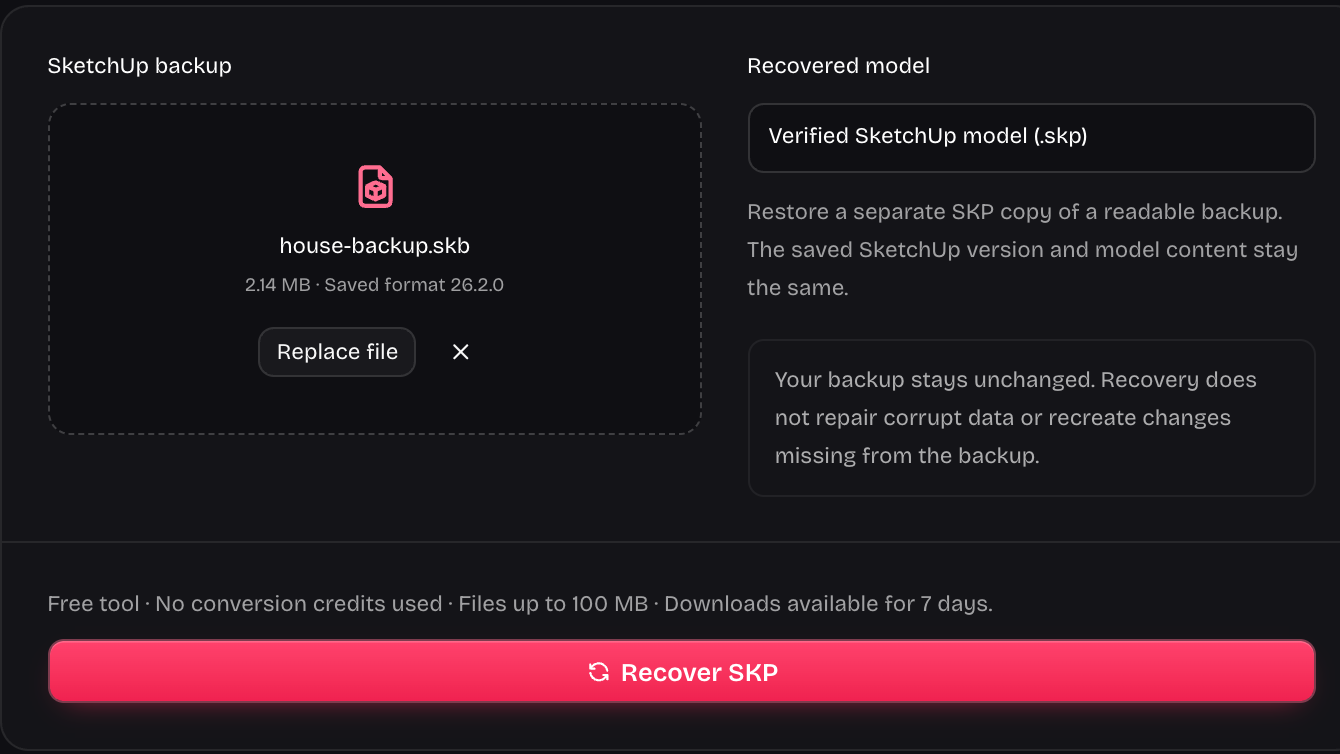
Restore a separate SKP copy of a readable backup. The saved SketchUp version and model content stay the same.

Your backup stays unchanged. Recovery does not repair corrupt data or recreate changes missing from the backup.

Checking converter availability…

Your conversions

Reopen your downloads from any signed-in session. Downloads expire after 7 days.

Turn a readable backup into a model copy

SKB to SKP Converter changes the role of a saved backup into a separate SKP you can open and review. Compare the backup model with the recovered copy before continuing your project.

Compare model file versions
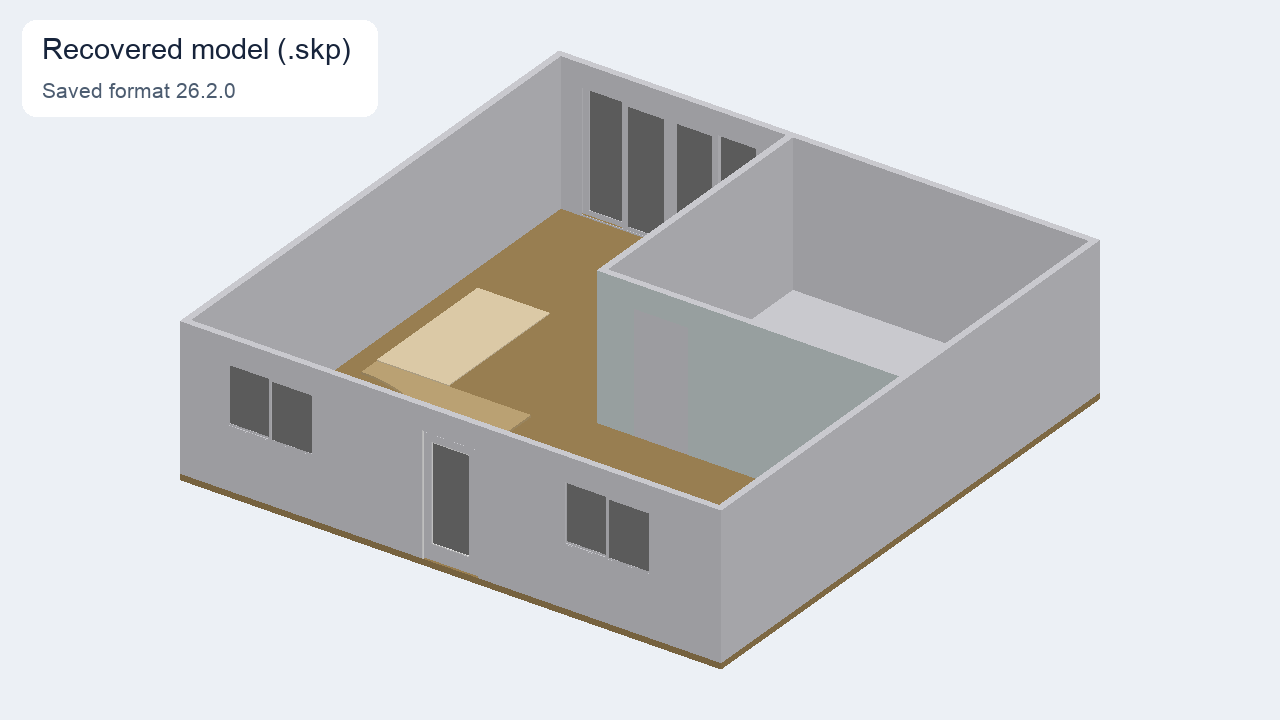
The same house model in the recovered SKP file
SKB to SKP Converter recovery starts with the model saved in the backup. Check the resulting SKP against the project revision you expected, then keep the backup until your working copy has been reviewed.

Recover your model with SKB to SKP Converter

SKB file selection controls for backup recovery

Start with the backup you have

SKB to SKP Converter accepts the backup file left from your SketchUp workflow and attempts to read its model. You can recover a usable copy when the saved backup is readable, instead of recreating the design from an image or memory.

Choose your SKB backup
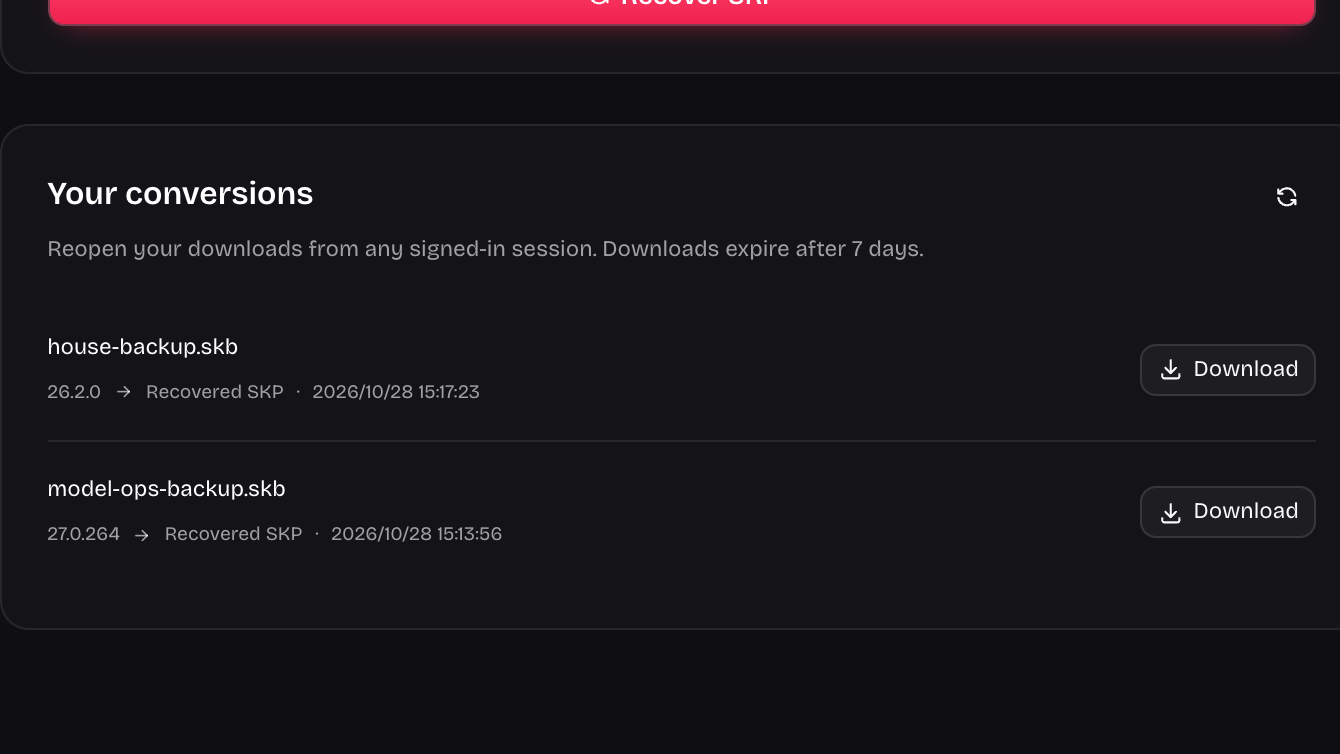

Recovered SKP result with its download action

Return to a recovered model

SKB to SKP Converter keeps successful downloads in your private account history for seven days. Return to the recovered copy from another signed-in session, and save it in your own project folder before the download expires.

Recover your SKP model
Living and dining room model with a sofa, chairs, and staircase

Resume an interrupted design task

A designer may find an SKB beside a missing or unusable working file. SKB to SKP Converter helps turn that available backup into an inspectable model, so the next step is checking the saved design rather than guessing what can be recovered.

Open the recovery tool

How SKB to SKP Converter restores a backup

Recover your SketchUp backup

Select the backup file

Choose the SKB saved with your project. Keep the original backup in its folder so you retain an independent copy during recovery.

Recover a readable model

Start SKB to SKP Converter and let it read the backup. If reading fails, use another available backup rather than assuming damaged content was repaired.

Download and review the SKP

Save the recovered model, open it in a suitable SketchUp application, and inspect the design before you replace an existing working file.

Continue from saved work instead of guessing

SKB to SKP Converter focuses on the project copy that is already inside a readable backup. Recover it, inspect the saved design, and decide which file should become your working model.

Use the available backup

SKB to SKP Converter works with the saved file you already have, giving that backup a clear recovery path toward a separate model copy.

Keep your fallback intact

Preserve the SKB while reviewing the SKB to SKP Converter result, so you can return to the original backup if further investigation is needed.

White marble dining table with flowers and surrounding wooden chairs

Compare the saved design

Check the model returned by SKB to SKP Converter against the project stage you expected, including important objects and the overall layout.

Recover without a purchase

SKB to SKP Converter is a free backup helper. Use the separate version or CAD tools when the recovered model needs another format for delivery.

After recovery, you can convert to an older SketchUp version or export a DWG drawing.

Questions about SKB to SKP Converter

SketchUp Version Converter cube and download mark

Recover the backup your project still has

Bring your readable backup to SKB to SKP Converter. Create a separate model copy, keep the original backup, and review the saved design before continuing.

Recover your SKP model